
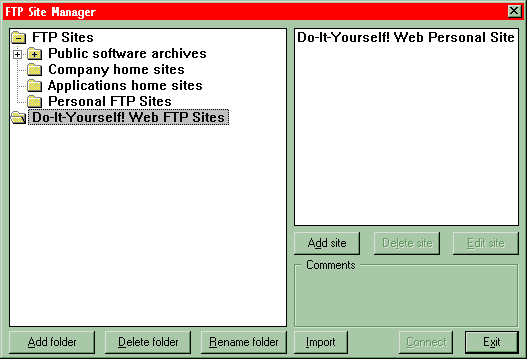
 In order to upload your files, you will need to first get your hands on an
FTP application. There are two recommended above, hoever, if you don't like
either of them, you can login to The Ultimate Collection Of Winsock Software
(TUCOWS) and download one that better suits your purpose. After you have
downloaded one that you like, you will need to change it's settings so that
you are setup to connect to "web.idirect.com" using your username and password (the same
one you use for Telnet access) to log in.
Once it is setup, you can then double click on Do-It-Yourself! Web (as seen in the example) to login and upload your files.Most of the procedure is automatic when everything is setup correctly.
If you are having particular problems setting up your FTP software, be sure to check the help files that come with the software, or send email to the author of the package for the quickest response.
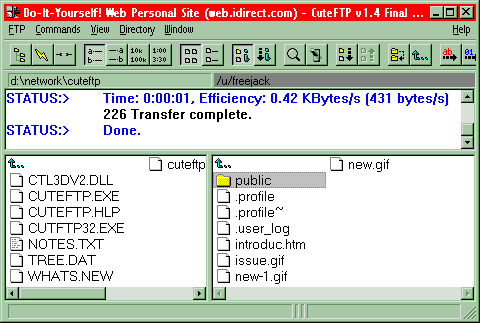 After you login the "web.idirect.com" you will start off in your home
directory. Don't upload your files yet, as you still need to change
directories to "public". In this case, if you are using a graphical FTp
program, all you need to do is double-click on the "public" directory link
in the window, as is outlined in the graphic. Once you have done this, you
will be in the proper directory to upload your files.
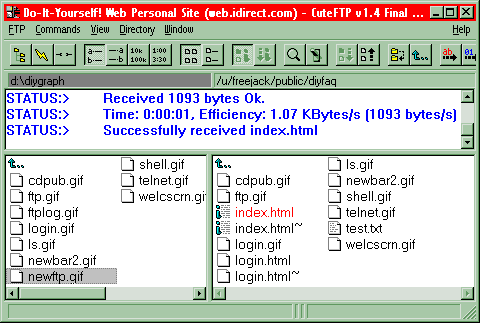 The last thing you will need to do is to change directories in your local
window so that you have selected the same directory that the files that you
wish to upload are located in.
Once you have selected the correct directory, double click on the files that you wish to transfer to our server and they will automatically be uploaded. Usually when the upload is completed, a notice box will pop up on your screen.
And that's all there is to it!
